
Production
God-zilla
Brain


Museum™
Man™
Terror™
Shop
Food
History
Games
| Video Production | Son of God-zilla | Your Brain | Links | Awards | Credits | | ||
|---|---|---|---|---|---|---|---|---|---|
| Eyeball Museum™ | Broccoli Man™ | Toilet of Terror™ | Gift Shop | Halloween | Fun with Food | Music History | Fun & Games | Contact | |

Supported controllers
Universal Devices ISY994i
Check back for more device support
Please only download if you have a supported controller.
Supported devices (click to download)
Android - available in the Google Play store
Windows 10 or 11 - available on request for a $5 donation
If you have a problem getting Simple Home Controller working, please don't give it a bad review! Contact me so I can fix the problem. I am not a company - I'm just a guy in his basement and this is my first Android app. My testing is limited to my own phones so it's possible something might not work right on a different phone.
The current version has been tested on Android versions 7 through 13. The app will not show in the Play store on versions 5 and earlier.
There are hundreds of Insteon and Z-Wave devices and I don't have them all for testing. If you have a device that is not showing up or doesn't have the proper controls, please contact me and I will get it working. I intend to support ALL modules that have controls that will fit the interface. I have a thread on the Universal Devices forum to discuss enhancement requests or you can contact me directly via the contact form on this web site.
Welcome to Simple Home Controller, the simple mobile & PC interface to your Insteon system. Simple Home Controller allows you to turn on/off and dim/brighten your devices and scenes. It is not intended as a replacement for more advanced programs such as MobiLinc Pro. Simple Home Controller is not configurable beyond the connection settings and font size - it relies on the configuration of your hardware. Folders, devices, and scenes will appear exactly as listed in your hardware configuration, except that the folder structure will be "flattened" to reduce the number of clicks to get to your devices. This means if you have nested folders on your controller, only the folders containing modules/scenes will be listed. The otherwise empty parent folders will not appear. By default I have left out the ISY group (which contains every module) and the Auto DR group (which is reserved by Universal Devices for meter interfacing). Simple Home Controller does not write to your controller hardware. It cannot mess up your programming.
The first time you run the program, you will be presented with the following settings screen:
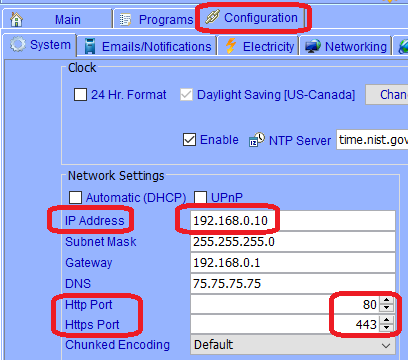
Enter the information into the settings screen of the app:
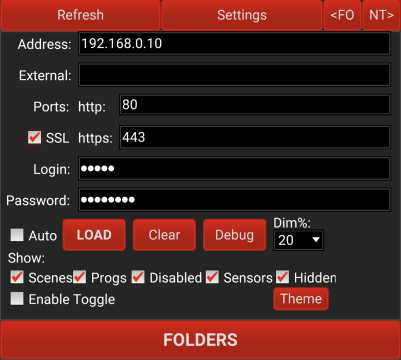
Address: enter the LOCAL IP address of your hardware as seen in the Admin Console configuration page. This usually starts with 192.168.xx.xx or 10.xx.xx.xx.
External: This is optional. Read below if you want to use Simple Home Controller from a remote location (rather than wifi connected to the same router as your controller). It requires additional setup of your network.
Login and Password: This is the same login and password you use for your hardware.
When you have the info entered, click LOAD. This will save your settings for future use as well as load your folder and device/scene/program information.
"Clear" will clear all the boxes as well as remove the saved settings file. "Debug" will make visible a debug window that shows some internal workings of the program. This might be helpful in troubleshooting problems.
Checking the "Auto" box will log you in and load your device info automatically when you run the app. Check this only after you have seen the entered configuration working.
The "Show" checkboxes allow you to show or hide Programs, Disabled devices (as set in the ISY admin console), Sensors, and Hidden devices (where the device name or folder name begins with "~" in the ISY admin console).
The theme buttom cycles through 10 color themes.
Controlling your devices is pretty simple. Click on a folder and you get a screen of the devices/scenes in that folder. Then you can turn devices on/off as well as bright/dim for devices that support it. Clicking the device name operates as a toggle, but might be less reliable in an environment where you get frequent "can't communicate with device" errors in your hardware admin console. Thus I recommend sticking with the on/off and bright/dim buttons. "<" is dim and ">" is bright.
Note that you can toggle on and off the ability to tap on device names as an on/off toggle by either checking or unchecking "Enable Toggle" in the Settings screen. Many people uncheck this to avoid accidentally turning devices on or off while scrolling.
You will see the icons change when you change the state of a device. For example, when OFF an item has a black icon. When ON a device has a white icon. When dimmed a device has a different icon, which then changes to the off or on icon when pressed enough times.
Important note: Changes made from other controllers or with the physical light switch are not reflected in the app until you hit "Refresh". This is to avoid constant pinging of the server, which would also use up your battery. It's part of what keeps Simple Home Controller simple - no tasks running in the background.
The "< FO" and "NT>" buttons at the top change the font size of your folder names and device/scene names. The two different screens can have different font sizes. The font sizes are also saved when you press either button so running the program again later will maintain your custom font sizes.
I am open to suggestions on enhancing this app, however, I do want to keep it simple and will never write to your controller - only read. Use the contact form on the web site (upper right).
The below info is solely for setting up Simple Home Controller to work remotely (when NOT connected via wifi to the same router as your ISY controller):
Simple Home Controller can work externally without requiring an extra service or monthly fee - if you have setup your router (that the hardware is connected to) to properly forward the port. This is outside of both Simple Home Controller and the hardware setup. Instructions can be found here:
https://wiki.universal-devices.com/index.php?title=ISY-99i/ISY-26_INSTEON:Remotely_Connect_to_Your_ISY
Note also that your ISP likely issues you a dynamic IP, which could change when you reboot your modem. The way around this is to use https://www.noip.com/ to issue you a domain name that automatically points to the IP address issued by your ISP. The service is free if you manually renew it each month or a small monthly fee to bypass manual renewal.
To see what your external IP address is, go here from a device connected to the same router as your ISY:
https://whatismyipaddress.com/
The number after "IPv4:" is the one we need.
Copy the IP address and type it into a browser (with either http or https if secure) and add a colon and the port number (from your port forwarding setup) after it, followed by /rest/time. It will look something like "https://50.75.217.26:443/rest/time" and should prompt you to log in. Then it will return something like this:
Or it might return the data without the XML code, like this:
3658143582-28800true45.516998122.65000236581167013658148955false
Once you have your external IP or domain name tested as above, enter it in the External area in the Simple Home Controller settings (again without the "https:" or any slashes). Enter the port number you forwarded as per the setup link in the "Port" space. The default is 443. If you have imported a security certificate then click the "SSL" checkbox. If you don't know what that means, then you likely haven't done it. :) Without it, your external connection is not secure - use at your own risk. Leave ExternalIP blank to only use the app when on your home wifi network.